Keeping a BLE Connection Alive in the Background with Flutter: What Actually Worked on Android and iOS
A field-tested approach to receiving BLE events and calling an API with the screen off: a foreground service on Android, the bluetooth-central mode on iOS, and one event-driven listener.
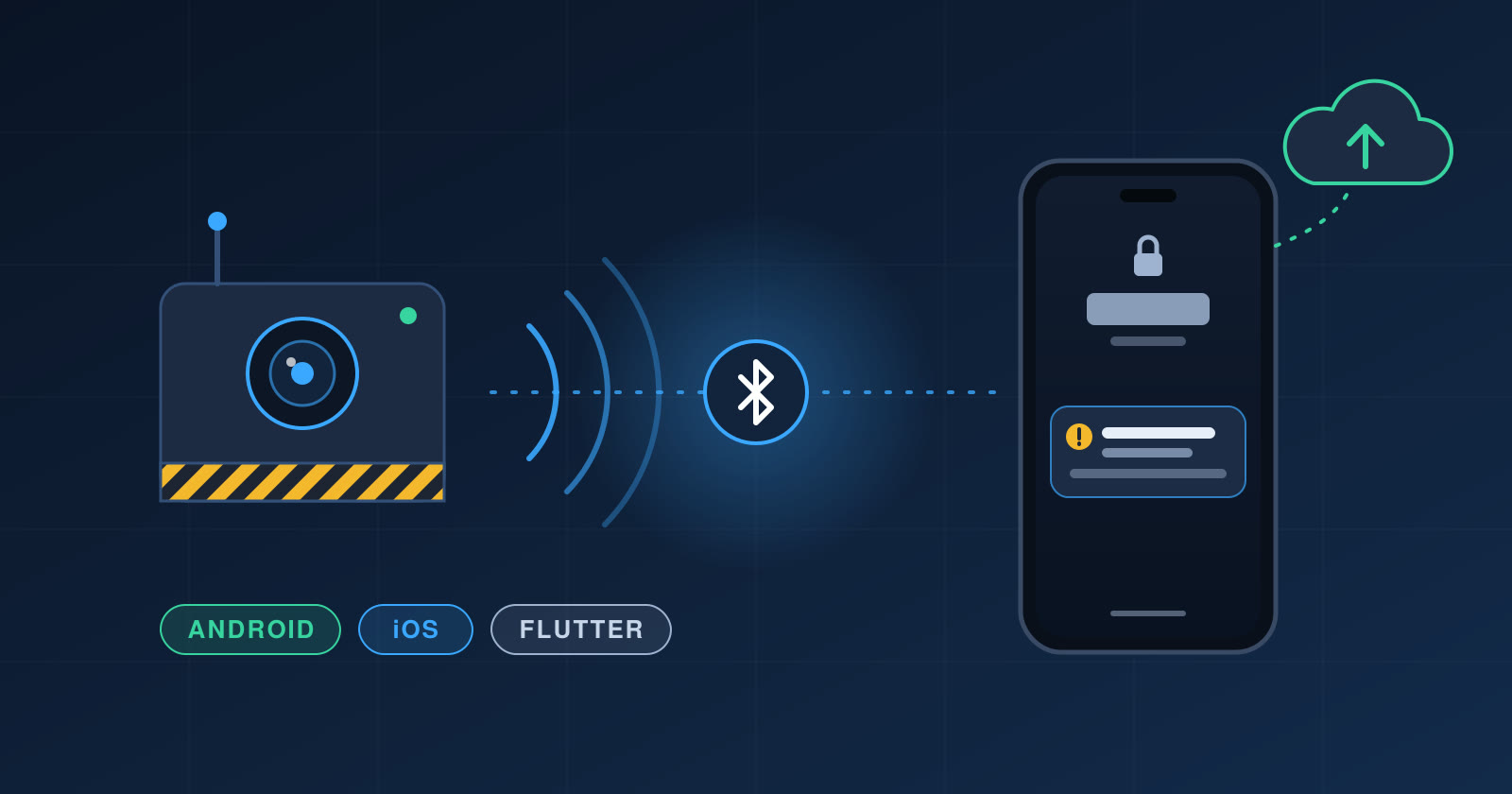
I built a Flutter app for a safety system on industrial vehicles. A hardware unit on the vehicle detects hazards and sends events over Bluetooth Low Energy (BLE) to the operator's phone. The app posts each event to a backend and alerts the operator. A shift can run for hours, and the phone spends most of it in a pocket with the screen off.
My first assumption was that I needed a background isolate doing all the work. I didn't. What made it work was different on each platform, and it wasn't what most tutorials suggest.
The key idea
On Android, a foreground service keeps your app's process alive. While the process is alive, your normal Dart code keeps running: the same isolate, the same controllers, the same BLE listener. The service itself doesn't need to do any work. Its job is to tell the OS "don't kill this process" and to show the notification the OS requires.
On iOS, there is no long-running service for this kind of app. What you get instead is the bluetooth-central background mode. When a connected peripheral sends a notification, iOS wakes your suspended app and gives it about 10 seconds to handle the event. If your app is event-driven, meaning it reacts to BLE notifications rather than polling on a timer, that window is enough to parse the event and make an API call.
So the design rule is simple: keep all the work in one event-driven listener in the main isolate, then use each platform's mechanism to keep that listener reachable.
Packages
dependencies:
  flutter_blue_plus: ^2.3.14
  flutter_background_service: ^5.1.0
  flutter_local_notifications: ^21.0.0   # iOS alerts while backgrounded
  permission_handler: ^13.0.2
Pin exact versions in your own project and check each package's changelog before upgrading.
Licensing note:
flutter_blue_plusis no longer BSD-licensed. Personal, nonprofit and educational use is free, but for-profit use requires a commercial license. Check the current terms on its pub.dev page before shipping a commercial app.
Android setup
Manifest
Declare the Bluetooth permissions and a foreground service whose type matches the work. For a BLE connection, that type is connectedDevice.
<manifest xmlns:android="http://schemas.android.com/apk/res/android">

    <uses-feature android:name="android.hardware.bluetooth_le" android:required="false" />

    <!-- Bluetooth: Android 12+ -->
    <uses-permission android:name="android.permission.BLUETOOTH_SCAN"
        android:usesPermissionFlags="neverForLocation" />
    <uses-permission android:name="android.permission.BLUETOOTH_CONNECT" />

    <!-- Bluetooth: Android 11 and below -->
    <uses-permission android:name="android.permission.BLUETOOTH" android:maxSdkVersion="30" />
    <uses-permission android:name="android.permission.BLUETOOTH_ADMIN" android:maxSdkVersion="30" />
    <uses-permission android:name="android.permission.ACCESS_FINE_LOCATION" android:maxSdkVersion="30" />

    <uses-permission android:name="android.permission.INTERNET" />
    <uses-permission android:name="android.permission.POST_NOTIFICATIONS" />
    <uses-permission android:name="android.permission.FOREGROUND_SERVICE" />
    <uses-permission android:name="android.permission.FOREGROUND_SERVICE_CONNECTED_DEVICE" />

    <application ...>
        <service
            android:name="id.flutter.flutter_background_service.BackgroundService"
            android:foregroundServiceType="connectedDevice"
            android:exported="false" />
    </application>
</manifest>
A few things to note:
- From Android 14, every foreground service must declare a type, and the type must match what the service does. If you also track location continuously, add
location(writtenconnectedDevice|location, with no spaces), its matching permission, and drop themaxSdkVersionon the location permission. FOREGROUND_SERVICEand the type-specific permissions are install-time permissions. You declare them; you don't request them at runtime.
Runtime permissions, before the service starts
The service must not start until the permissions it depends on are granted.
import 'dart:io';
import 'package:permission_handler/permission_handler.dart';

Future<bool> requestSessionPermissions() async {
  if (!Platform.isAndroid) return true; // iOS prompts on first Bluetooth use

  // Android 12+. On Android 11 and below, request Permission.location instead.
  final statuses = await [
    Permission.bluetoothScan,
    Permission.bluetoothConnect,
    Permission.notification,
  ].request();

  return statuses.values.every((s) => s.isGranted);
}
The service: deliberately minimal
import 'package:flutter_background_service/flutter_background_service.dart';
import 'package:flutter_background_service_android/flutter_background_service_android.dart';

@pragma('vm:entry-point')
void onServiceStart(ServiceInstance service) {
  if (service is AndroidServiceInstance) {
    // Lets the main isolate update the ongoing notification text.
    service.on('updateNotification').listen((data) {
      service.setForegroundNotificationInfo(
        title: 'Session active',
        content: data?['text'] ?? 'Listening to sensor',
      );
    });
  }
  service.on('stop').listen((_) => service.stopSelf());
}

@pragma('vm:entry-point')
Future<bool> onIosBackground(ServiceInstance service) async => true;

Future<void> configureBackgroundService() async {
  await FlutterBackgroundService().configure(
    androidConfiguration: AndroidConfiguration(
      onStart: onServiceStart,
      autoStart: false,
      isForegroundMode: true,
      initialNotificationTitle: 'Session active',
      initialNotificationContent: 'Listening to sensor',
    ),
    iosConfiguration: IosConfiguration(
      autoStart: false,
      onForeground: onServiceStart,
      onBackground: onIosBackground,
    ),
  );
}
onServiceStart runs in a separate isolate. It can't see your controllers, your BLE connection or your state. That's fine here, because it has nothing to do except keep the process alive and update its own notification.
The @pragma('vm:entry-point') annotation is required. Without it, release builds can strip the function and the service silently stops working.
Call configureBackgroundService() once in main(), not on every lifecycle change.
Start the service when the session starts
Start the service when the user begins a session, while the app is on screen. Don't wait until the app goes to the background.
Android 12 and later restrict starting foreground services from the background. Starting one inside didChangeAppLifecycleState(paused) is a race: it may work in your testing and fail on another device.
iOS setup
Declare UIBackgroundModes exactly once, as a single array:
<key>NSBluetoothAlwaysUsageDescription</key>
<string>Used to stay connected to your sensor during a session, including when the screen is off.</string>

<key>UIBackgroundModes</key>
<array>
    <string>bluetooth-central</string>
</array>
My original Info.plist declared this key three times, copied from different setup guides. A plist with duplicate keys is invalid, and you can't know which copy wins. Merge everything into one array.
On iOS, flutter_background_service added nothing for this use case. Its iOS background callback runs through Background Fetch, which fires at most every 15 minutes or so, for a few seconds at a time. bluetooth-central did all the real work.
If you also need the app to be relaunched after iOS terminates it, look at FlutterBluePlus.setOptions(restoreState: true), which has to be called before any other BLE work.
One long-lived listener
This is the core of the app. Subscribe to the sensor's notify characteristic once, when the session starts, and keep that subscription for the whole session. Use a flag to decide how to alert the user.
ApiClient, LocalNotifier, SensorEvent and findEventCharacteristic stand in for your own backend client, notification wrapper, protocol parser and UUID lookup.
import 'dart:async';
import 'dart:io';

import 'package:flutter/widgets.dart';
import 'package:flutter_background_service/flutter_background_service.dart';
import 'package:flutter_blue_plus/flutter_blue_plus.dart';

class SessionController with WidgetsBindingObserver {
  SessionController(this.api, this.notifier);

  final ApiClient api;
  final LocalNotifier notifier;

  bool _inBackground = false;
  StreamSubscription<List<int>>? _eventSub;
  BluetoothDevice? _device;

  Future<void> startSession(BluetoothDevice device) async {
    if (!await requestSessionPermissions()) return;

    WidgetsBinding.instance.addObserver(this);
    _device = device;

    await device.connect();
    final services = await device.discoverServices();
    final characteristic = findEventCharacteristic(services); // your UUIDs

    _eventSub = characteristic.onValueReceived.listen(_onEvent);
    device.cancelWhenDisconnected(_eventSub!);
    await characteristic.setNotifyValue(true);

    if (Platform.isAndroid) {
      await FlutterBackgroundService().startService();
    }
  }

  Future<void> _onEvent(List<int> bytes) async {
    final event = SensorEvent.tryParse(bytes); // your protocol
    if (event == null) return;

    try {
      await api.postEvent(event);
    } catch (_) {
      // Queue for retry. Never touch UI or navigation here.
    }

    if (_inBackground) {
      if (Platform.isAndroid) {
        FlutterBackgroundService()
            .invoke('updateNotification', {'text': event.summary});
      } else {
        await notifier.show(event.summary);
      }
    }
  }

  @override
  void didChangeAppLifecycleState(AppLifecycleState state) {
    _inBackground = state != AppLifecycleState.resumed;
  }

  Future<void> endSession() async {
    FlutterBackgroundService().invoke('stop');
    await _eventSub?.cancel();
    await _device?.disconnect();
    WidgetsBinding.instance.removeObserver(this);
  }
}
My first version cancelled and re-subscribed on every pause and resume, rediscovering services each time just to change how alerts were shown. A flag checked inside a single listener does the same job with no extra BLE traffic and far fewer edge cases.
On Android, updating the foreground service's own notification beats posting a second one. The user sees one ongoing notification with the latest status instead of two.
Pitfalls I hit
UI and navigation in background code paths. My API layer showed loading overlays and snackbars, and on failure it popped the current route. While the app was backgrounded, one failed request could pop the session screen. That screen's dispose() stopped the service, so the session ended silently. Keep any code that can run in the background free of UI and navigation, and report errors through state the UI reads when it comes back.
Timers don't survive iOS suspension. A Timer.periodic doesn't fire while an iOS app is suspended. Only events iOS delivers wake the app. If you poll something on a timer, such as location, the value may be stale by the time you use it. For continuous background location, use a location stream with the platform settings for it: on iOS, background location updates plus the location background mode; on Android, a location-type foreground service.
Keep the wake-up work short on iOS. You get roughly 10 seconds per BLE wake-up. Parse, send, notify, and return. Apps that run too long in the background get throttled or killed.
Choose the foreground service type carefully. Pick the type that matches the work. On recent Android versions, some types, including dataSync, have runtime limits. A BLE session is a connectedDevice service.
Battery optimization. Some manufacturers kill apps aggressively even when they run a foreground service. You can ask users to exempt your app from battery optimization, but it requires the REQUEST_IGNORE_BATTERY_OPTIMIZATIONS permission in the manifest, and Google Play only allows it for specific use cases. Read the policy before you ship it.
Handle disconnects explicitly. Devices go out of range. Decide whether a disconnect ends the session or triggers a reconnect. If you reconnect, call discoverServices() again and re-subscribe; a new connection doesn't restore the old subscription.
Check the package's maintenance status. flutter_background_service hasn't had a release in a long time. It worked for this use case, but flutter_foreground_task is a reasonable alternative for the Android side, and it's the one the flutter_blue_plus docs point to.
Results
In real use, sessions of about an hour with the screen locked kept working: events arrived, API calls went through, and the operator got alerts. No background isolate did any real work, and no custom native code was needed.
What I'd do differently now
- Start with the event-driven design from day one, instead of assuming background work needs a background isolate.
- Keep a small offline queue for API calls, because phones lose signal.
- Test on at least one aggressively battery-optimized Android device before calling it done.
If you've kept BLE sessions alive in the background another way, I'd like to hear about it in the comments.